

Home should feel safe, on and offline. Clear habits and simple tools go a long way toward digital safety for kids. This guide helps families in HOA communities set boundaries that work in everyday life.
Why Digital Safety for Kids Matters at Home
Children learn, play, and socialise online every day. The same spaces can expose them to strangers, scams, and content that is not age-appropriate. Building digital safety for kids at home starts with steady rules and open talks.
Community Spaces and Shared Networks in HOAs
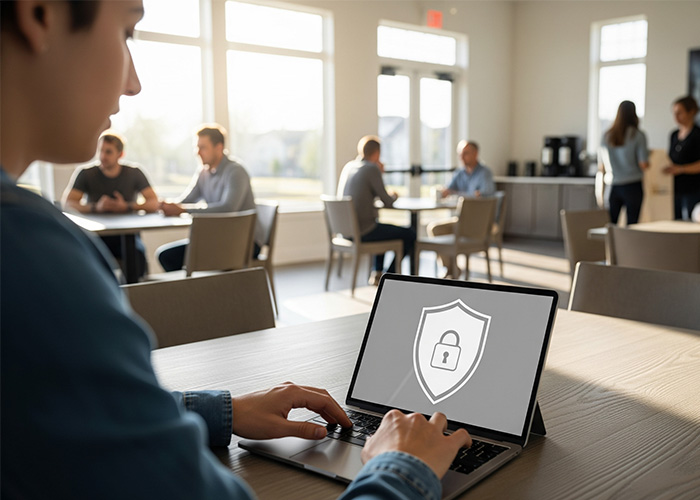
Many communities offer shared Wi-Fi in clubhouses and pool areas. Kids may go online there without close supervision. Confirm the network name, change posted passwords often, and keep a guest network separate from any staff systems.
HOAs also run portals and social pages. Review what is public and what is private. Ask your board or manager how member data and photos are handled, and set a family rule to avoid posting home addresses, gate codes, or real-time location details.
Start With Family Internet Safety Basics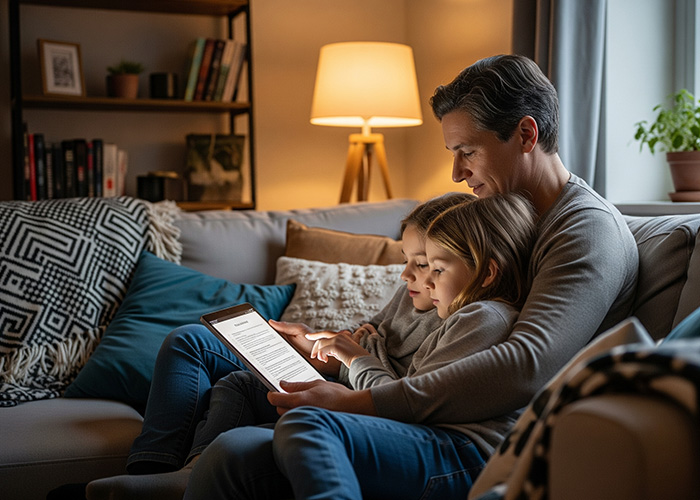
Start with a brief family agreement that is both friendly and clear. As part of it, list what is okay, what is not okay, and what to do if something feels off.
- Keep accounts private and use strong, unique passwords.
- Turn on two-factor authentication where available.
- Do not share personal details like school, phone number, or building number.
- Tell a parent or guardian if anyone asks for photos or gifts.
These basics support online safety for children without fear or shame. The goal is to build trust and develop steady habits.
Age-Appropriate Settings
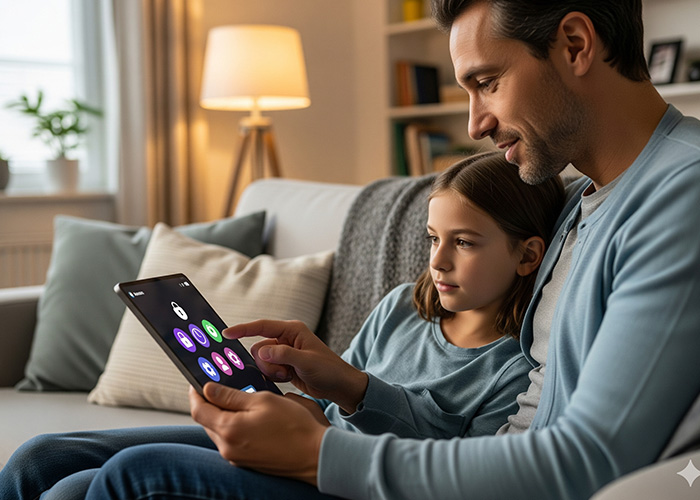
Set up device and app controls before your child uses them. Use built-in parental controls on phones, tablets, game consoles, and smart TVs. Create child profiles with content filters and purchase limits. Review settings after each major update, since defaults can change.
Look for platforms with strong moderation and transparent reporting. Use real birth years when allowed so filters match the correct age range. Keep your own parent account to view activity reports without reading every message.
Screen Time Safety for Kids
Healthy limits are easier when they fit your routine. Choose device-free zones like bedrooms and the dinner table. Set a nightly tech curfew to support sleep. Post the rules on the fridge so everyone sees them.
Use downtime schedules on devices to automatically shut down apps at set times. If your child needs a one-time extension for homework, grant it and then return to the plan. Consistency makes screen time safety for kids feel fair.
Teach Kids to Spot Red Flags

As much as you want to be there for your kid, sometimes, they will need to decide and move on their own. For digital safety, teach children how to pause and check:
- Unknown friend requests or DMs.
- Messages that ask to “keep a secret.”
- Links that promise free coins, skins, or prizes.
- Requests to move a chat to a different app.
Practice responses together. A simple “No thanks” or “I do not share that” builds confidence. Encourage kids to take a screenshot and tell you when something feels wrong.
A Simple Device and Network Checklist
A strong home setup supports digital safety for kids. Review this list each season or after a move.
- Update device software and apps.
- Turn on automatic updates where possible.
- Use a modern router with WPA3 or at least WPA2 security.
- Change default router passwords and admin names.
- Create a guest network for visitors and smart devices.
- Enable SafeSearch on major browsers and search engines.
- Turn on content filters at the router level if your hardware supports it.
Privacy, Photos, and Location

Photos can reveal more than you intend, like school logos or street signs. Turn off location tags on camera apps used by children. Teach kids to crop or blur background details before sharing. For school and team posts, agree on a policy about names, numbers, and uniforms.
Gaming and Chat Features
Games are social by design. Review chat, voice, and friend settings on each title. Use platform-level privacy tools on PlayStation, Xbox, Nintendo, and PC stores. Keep headsets in shared spaces when possible so you can hear the tone of conversations.
Remind kids that not every player is who they claim to be. If a chat turns rude or asks for personal info, mute and report. Then take a short break. Cooling down helps everyone.
Social Media Milestones

Before allowing social media, set a trial period with a private account and a short daily limit. Co-follow at first so you can see what your child sees. Discuss ads, influencer content, and sponsored posts. Ask simple questions like, “What is the creator asking you to do?” This builds media literacy and supports family internet safety without lectures.
When Schoolwork Moves Online
Check the tools your school uses for homework and messages. Save teacher contacts and support links in one place. Show your child how to manage notifications so school alerts do not flood the evening. Keep school accounts separate from personal ones to reduce mix-ups and leaks.
Community-Wide Ideas for HOAs

Boards and managers can help create a safer online culture:
- Post seasonal reminders about shared Wi-Fi, phishing, and scam trends.
- Offer a parent night with a local officer or school tech lead.
- Set photo guidelines for community newsletters and event recaps.
- Review vendor access to networks and cameras in common areas.
- Keep the community portal updated and require strong passwords.
This shared approach supports digital safety for kids across the neighborhood.
Build Trust With Open Conversations
Kids need a safe place to talk when mistakes happen. Promise calm first, solutions second. Use open questions like, “What happened next?” or “How did that feel?” Praise honest reporting. When children know they can come to you, small issues stay small.
What to Do If Something Goes Wrong

Save evidence with screenshots. Do not reply to harassing messages. Block and report the user in-app. If money, threats, or explicit content are involved, contact local law enforcement. Inform your HOA manager only if community systems or spaces are involved, such as shared Wi-Fi or portal misuse.
Reset passwords and review devices for malware. Talk through what happened and adjust your family plan. Every incident can teach a skill.
Keep Kids Safe Online
The best plans are the ones you keep. Digital safety is a daily habit, not a one-time task. With steady rules, open talks, and the right tools, families can keep kids safer online at home and in the community.
Related Articles: